
PRISM+
Support Center Beta
0 of 7 steps complete~7 min remaining

NanoBot First-Time Setup Guide

PRISM+ Support teamUpdated 20 July 2026~7 min remaining7 steps

Before You Begin

Please ensure the following:

✓ Your NanoBot is fully assembled

✓ The charging dock is plugged into a power outlet

✓ Your mobile device is connected to a 2.4GHz Wi-Fi network

✓ Bluetooth is enabled on your mobile device

✓ The PRISM+ Connect App is installed and updated

Steps

  1. 1
    1 min

    Place the charging dock:

    • Against a flat wall
    • On a level surface
    • Near a stable Wi-Fi signal

    For best performance, leave:
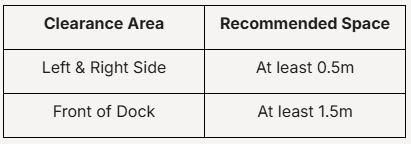
    Avoid placing the dock:

    ❌ Near stairs

    ❌ Behind furniture

    ❌ In direct sunlight

    ❌ On thick carpets

  2. 2
    1 min
    1. Place the NanoBot on the charging dock.
    2. Ensure the charging contacts align correctly.
    3. Allow the NanoBot to charge fully before first use.

    Recommended: Fully charge the robot before starting the initial mapping process.

  3. 3
    1 min
    1. Open the App Store (iOS) or Google Play Store (Android).
    2. Search for PRISM+ Connect.
    3. Install and open the application.
    4. Sign in or create an account.
  4. 4
    1 min
    1. Open the PRISM+ Connect App.
    2. Tap "+" (Add Device).
    3. Select NanoBot from the device list.
    4. Follow the on-screen instructions.
  5. 5
    1 min
    1. Power on the NanoBot.
    2. Press and hold the Wi-Fi or pairing button (refer to your model instructions).
    3. Wait until the Wi-Fi indicator begins flashing.

    This indicates the NanoBot is ready to connect.

  6. 6
    1 min
    1. Select your home Wi-Fi network.
    2. Enter your Wi-Fi password.
    3. Wait for the pairing process to complete.

    Once connected successfully, your NanoBot will appear in the PRISM+ Connect App.

  7. 7
    1 min

    For the most accurate mapping:

    ✓ Open all room doors

    ✓ Remove loose cables and obstacles

    ✓ Ensure adequate lighting

    ✓ Keep pets and children away during mapping

    Allow the NanoBot to complete its first cleaning and mapping cycle without interruption.

Common Setup Issues

NanoBot Cannot Connect to Wi-Fi

Check that:

  • You are connected to a 2.4GHz Wi-Fi network
  • Bluetooth is enabled
  • The Wi-Fi password entered is correct
  • The robot is in pairing mode
  • The NanoBot is within range of the router

NanoBot Is Not Appearing in the App

Try the following:

  1. Restart the NanoBot.
  2. Restart the PRISM+ Connect App.
  3. Restart your mobile device.
  4. Repeat the pairing process.

Mapping Is Incomplete

This may occur if:

  • Doors were closed during mapping
  • Obstacles blocked the robot's path
  • The robot was manually moved during mapping

Run another cleaning cycle to allow the map to update.

After Setup

Once setup is complete, you can:

  • Start and stop cleaning remotely
  • Schedule cleaning sessions
  • View cleaning history
  • Monitor battery levels
  • Create cleaning zones (supported models)
  • Manage room mapping (supported models)

Didn't find your answer?

No problem — send us the details below and a specialist will reply by email. Avg. response under 4 hours during business hours.