
PRISM+
Support Center Beta
0 of 7 steps complete~7 min remaining

NanoBot First-Time Setup Guide

PRISM+ Support teamUpdated 20 July 2026~7 min remaining7 steps

Before You Begin

Please ensure the following:

Your NanoBot is fully assembled

The charging dock is plugged into a power outlet

Your mobile device is connected to a 2.4GHz Wi-Fi network

Bluetooth is enabled on your mobile device

The PRISM+ Connect App is installed and updated

Steps

  1. 1
    1 min

    Place the charging dock:

    • Against a flat wall
    • On a level surface
    • Near a stable Wi-Fi signal

    For best performance, leave:
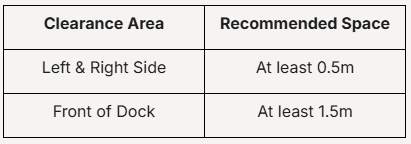
    Avoid placing the dock:

    ❌ Near stairs

    ❌ Behind furniture

    ❌ In direct sunlight

    ❌ On thick carpets

  2. 2
    1 min
    1. Place the NanoBot on the charging dock.
    2. Ensure the charging contacts align correctly.
    3. Allow the NanoBot to charge fully before first use.

    Recommended: Fully charge the robot before starting the initial mapping process.

  3. 3
    1 min
    1. Open the App Store (iOS) or Google Play Store (Android).
    2. Search for PRISM+ Connect.
    3. Install and open the application.
    4. Sign in or create an account.
  4. 4
    1 min
    1. Open the PRISM+ Connect App.
    2. Tap "+" (Add Device).
    3. Select NanoBot from the device list.
    4. Follow the on-screen instructions.
  5. 5
    1 min
    1. Power on the NanoBot.
    2. Press and hold the Wi-Fi or pairing button (refer to your model instructions).
    3. Wait until the Wi-Fi indicator begins flashing.

    This indicates the NanoBot is ready to connect.

  6. 6
    1 min
    1. Select your home Wi-Fi network.
    2. Enter your Wi-Fi password.
    3. Wait for the pairing process to complete.

    Once connected successfully, your NanoBot will appear in the PRISM+ Connect App.

  7. 7
    1 min

    For the most accurate mapping:

    Open all room doors

    Remove loose cables and obstacles

    Ensure adequate lighting

    Keep pets and children away during mapping

    Allow the NanoBot to complete its first cleaning and mapping cycle without interruption.

Common Setup Issues

NanoBot Cannot Connect to Wi-Fi

Check that:

  • You are connected to a 2.4GHz Wi-Fi network
  • Bluetooth is enabled
  • The Wi-Fi password entered is correct
  • The robot is in pairing mode
  • The NanoBot is within range of the router

NanoBot Is Not Appearing in the App

Try the following:

  1. Restart the NanoBot.
  2. Restart the PRISM+ Connect App.
  3. Restart your mobile device.
  4. Repeat the pairing process.

Mapping Is Incomplete

This may occur if:

  • Doors were closed during mapping
  • Obstacles blocked the robot's path
  • The robot was manually moved during mapping

Run another cleaning cycle to allow the map to update.

After Setup

Once setup is complete, you can:

  • Start and stop cleaning remotely
  • Schedule cleaning sessions
  • View cleaning history
  • Monitor battery levels
  • Create cleaning zones (supported models)
  • Manage room mapping (supported models)

Didn't find your answer?

No problem — send us the details below and a specialist will reply by email. Avg. response under 4 hours during business hours.