
How to Screen Mirror Your iPhone or iPad to Your PRISM+ TV
Please ensure:
- Your PRISM+ Google TV is connected to Wi-Fi
- Your iPhone or iPad is connected to the same Wi-Fi network as the TV
- Both devices are connected to the same Wi-Fi band (2.4GHz or 5GHz)
**If your TV does not appear during screen mirroring, your router may be combining both Wi-Fi bands into a single network. You may need to separate the 2.4GHz and 5GHz bands.
For assistance with Wi-Fi band settings:
- Refer to your router's user manual
- Contact your Internet Service Provider (ISP)
How to Set Up Screen Mirroring
Step 1: Install AirScreen on Your TV
- Open the Google Play Store on your Android TV.
- Search for AirScreen.
- Download and install the app.
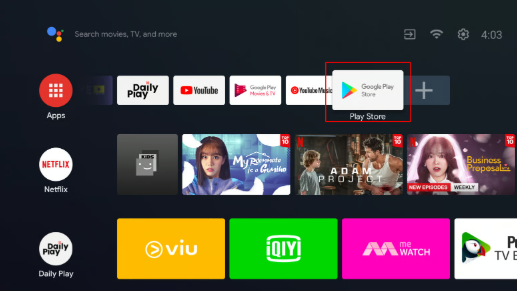
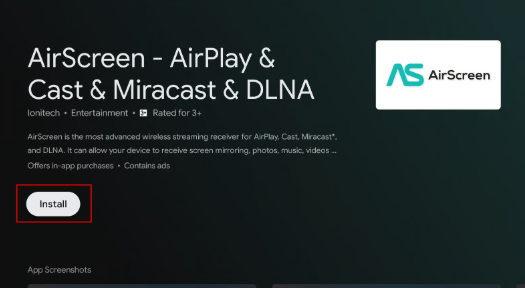
Step 2: Launch AirScreen
- Open the AirScreen app.
- Complete the initial setup by following the on-screen instructions.
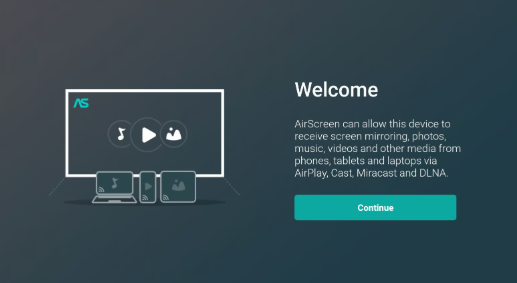
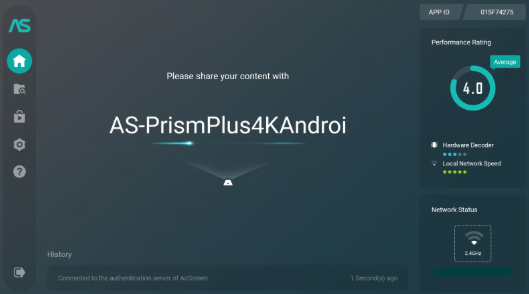
Step 3: Open Screen Mirroring on Your iPhone or iPad
Open the Control Centre on your iPhone or iPad.
Swipe down from the top-right corner (newer devices)
- Swipe up from the bottom edge (older devices)
- Tap Screen Mirroring.
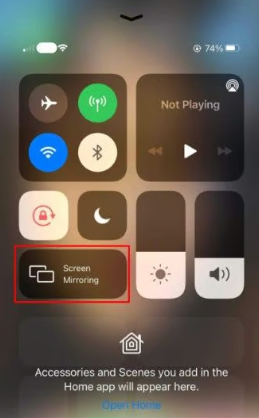
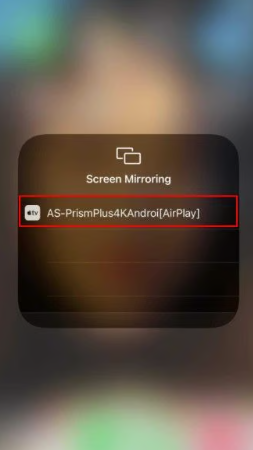
Step 4: Select Your TV
- Select your PRISM+ TV from the list of available devices.
- Your iPhone or iPad screen will begin displaying on the TV.
⚠️ The device name shown may differ depending on your TV settings.
Common Issues
My TV Does Not Appear in the Screen Mirroring List
Check the following:
- Both devices are connected to the same Wi-Fi network
- Both devices are connected to the same Wi-Fi band (2.4GHz or 5GHz)
- AirScreen is installed and running on the TV
- Your router is not isolating devices on the network
Screen Mirroring Keeps Disconnecting
Try:
- Restarting both devices
- Reconnecting to Wi-Fi
- Moving closer to the router for a stronger signal
Poor Video or Audio Quality
This may be caused by:
- Weak Wi-Fi signal
- Network congestion
- High-resolution content being streamed
A stronger Wi-Fi connection may improve performance.
Important Notes
- AirScreen is a third-party application.
- PRISM+ does not develop, maintain, or guarantee compatibility with AirScreen.
- Features, functionality, and compatibility may change based on app updates released by the developer.
If you encounter issues specific to AirScreen, please contact the app developer through the Google Play Store for further assistance.
Was this guide helpful?
Your feedback helps us improve every guide.Didn't find your answer?
No problem — send us the details below and a specialist will reply by email. Avg. response under 4 hours during business hours.