
PRISM+
Support Center Beta
0 of 2 steps complete~2 min remaining

How to Factory Reset Your PRISM+ Door or Gate Lock

PRISM+ Support teamUpdated 5 August 2026~2 min remaining2 steps

Before You Begin

Before resetting your lock, ensure that:

  •  The lock has sufficient battery power.

  • The door is open to prevent accidental lockout.

  • You have access to the administrator account or reset button (depending on your lock model).

Important: A factory reset cannot be undone. All saved settings and user information will be permanently erased.


When Should I Factory Reset My Lock?

A factory reset may be required if you:

  • Are transferring the lock to a new owner.
  • Need to remove all existing users and access credentials.
  • Are troubleshooting pairing or connectivity issues.
  • Want to set up the lock again from the beginning.

Steps

  1. 1
    1 min

    Sentinal reset


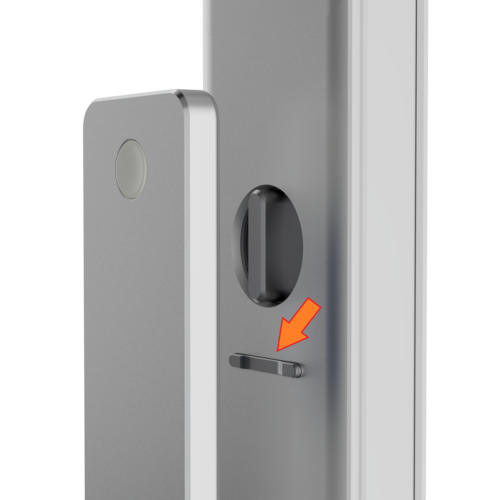
    Press and hold the lock and unlock button simultaneously then key in the pin 000#

    The door lock will be reset to default settings.

    *Please note that resetting the door lock will result in all saved data being deleted, including fingerprints, RFID entries, PINs, facial recognition data (for PRO versions), and paired devices.
  2. 2
    1 min

    Sentry lock reset


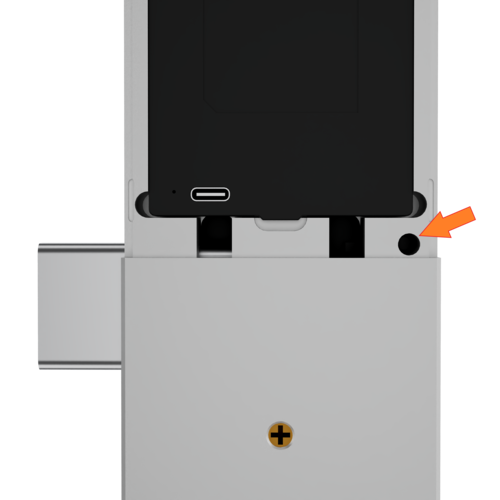
    Remove the back casing of the gate lock then use something thin to poke onto the reset button and then key in the pin 000#

    The gate lock will be reset to default settings.

    *Please note that resetting the gate lock will result in all saved data being deleted, including fingerprints, RFID entries, PINs, facial recognition data (for PRO versions), and paired devices.

Didn't find your answer?

No problem — send us the details below and a specialist will reply by email. Avg. response under 4 hours during business hours.