
Open the PRISM+ Connect App, then tap on the Smart Lock you want to manage.
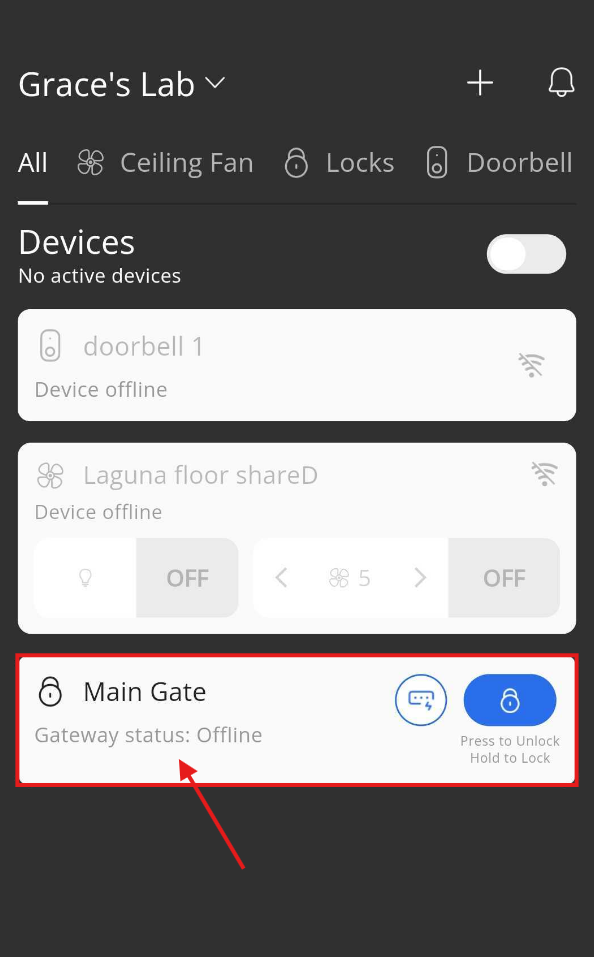
You can delete any saved access (such as fingerprints, Face ID, PIN codes, RFID cards, stickers, or remote controls) directly from the PRISM+ Connect App. Deleting an access immediately removes that user's ability to unlock your Smart Lock.
You can remove any of the following access methods:
| Access Type | Supported |
|---|---|
| Fingerprints | ✓ |
| Face ID | ✓ |
| Passcodes | ✓ |
| RFID Cards | ✓ |
| RFID Stickers | ✓ |
| Remote Controls | ✓ |
Make sure:
Open the PRISM+ Connect App, then tap on the Smart Lock you want to manage.
Touch the keypad on your Smart Lock to wake it up and establish a Bluetooth connection.
Tip: The lock must be awake before any changes can be synced.
Scroll down to the Access section.
Locate the access you want to remove, then:
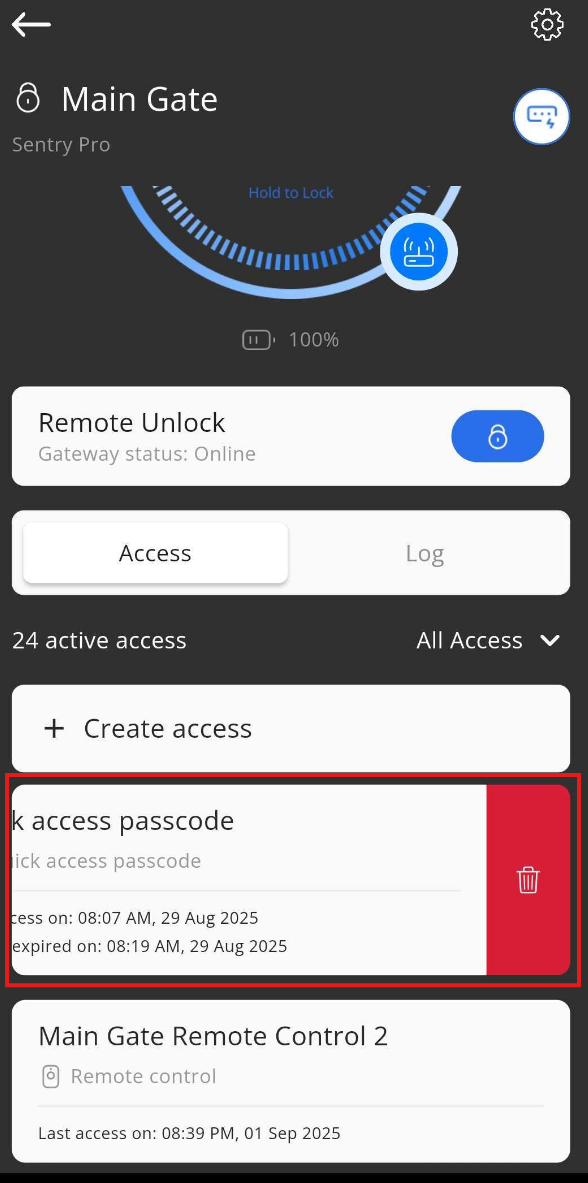
The selected access will be removed immediately from your Smart Lock.
Was this guide helpful?
Your feedback helps us improve every guide.No problem — send us the details below and a specialist will reply by email. Avg. response under 4 hours during business hours.