
How to Control Your PRISM+ Ceiling Fan Using the PRISM+ Connect App
The PRISM+ Connect App allows you to control your Ceiling Fan and access additional settings directly from your phone.
1. Open Your Ceiling Fan Controller
From the Main Dashboard:
- Tap the Ceiling Fan you want to control.
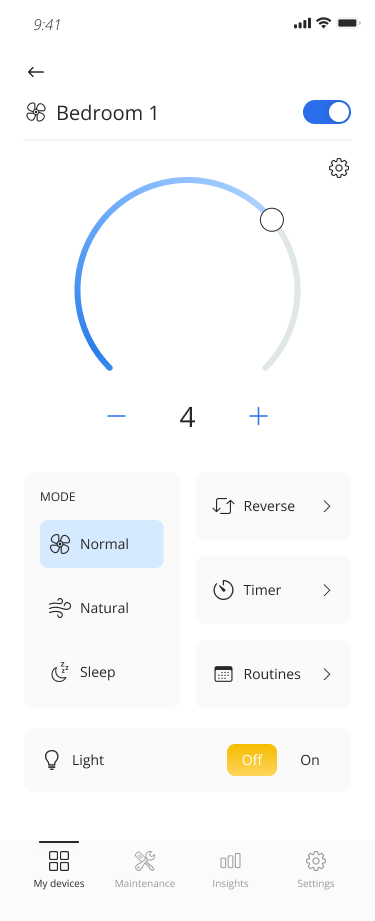
- You will be directed to the Virtual Remote, where you can access the available fan and light controls.
Fan & Light Controls
| Control | What You Can Do |
|---|---|
| Fan Speed | Adjust the fan speed using the Scroll Wheel or the – / + buttons. |
| Fan Mode | Switch between Normal, Natural, and Sleep modes. |
| Forward / Reverse | Change the direction in which the fan rotates. |
| Light On / Off | Toggle the Ceiling Fan light On or Off. |
| Brightness | Adjust the light brightness using the slider. |
| Temperature | Adjust the light temperature using the slider. |
2. Set a Timer
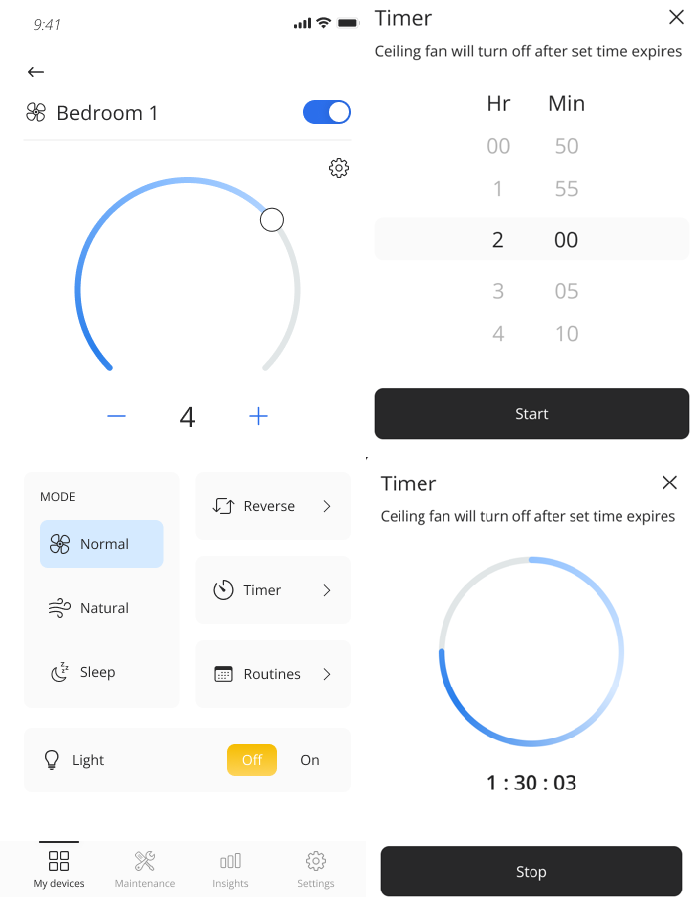
You can set a countdown timer for your Ceiling Fan to automatically switch off after a selected period.
- Tap Timer.
- Set the amount of time you want the Ceiling Fan to remain switched on.
- Tap Start to begin the countdown.
- The Ceiling Fan will automatically turn off when the timer ends.
To Stop the Timer
- Tap Timer again.
- Tap Stop.
3. Set Up a Routine
Use Routines to automatically turn your Ceiling Fan on or off according to your preferred schedule.
For more information on setting up and managing routines, refer to the Routines guide.
4. Access More Settings
To access additional Ceiling Fan settings:
- Tap the Settings icon in the top-right corner of the Virtual Remote.
- Select the setting you wish to access.
Tip: The available controls and settings may vary depending on your PRISM+ Ceiling Fan model.
Was this guide helpful?
Your feedback helps us improve every guide.Didn't find your answer?
No problem — send us the details below and a specialist will reply by email. Avg. response under 4 hours during business hours.