
How does KVM work?
Answers to the things customers ask most. Search for a keyword, or browse the list below to jump to your answer.
KVM lets your monitor share one keyboard and mouse between two computers.
When you switch the monitor’s input (for example, from your work laptop to your home PC), your keyboard and mouse will also switch automatically. You can do this easily through the monitor’s on-screen menu.
Requirements for Using KVM
To utilize the KVM function, you will need the following:
- 2 x Computer/Laptop (one of which needs to have at least a USB-C port if not used for display output.)
- 1 x USB-A to USB-B Cable
- 1 x USB-C Cable capable for data transfer
- 1 x Monitor listed above
────────────────────────────
Examples of Setups
Please find below illustrations of two scenarios where you can utilise KVM.
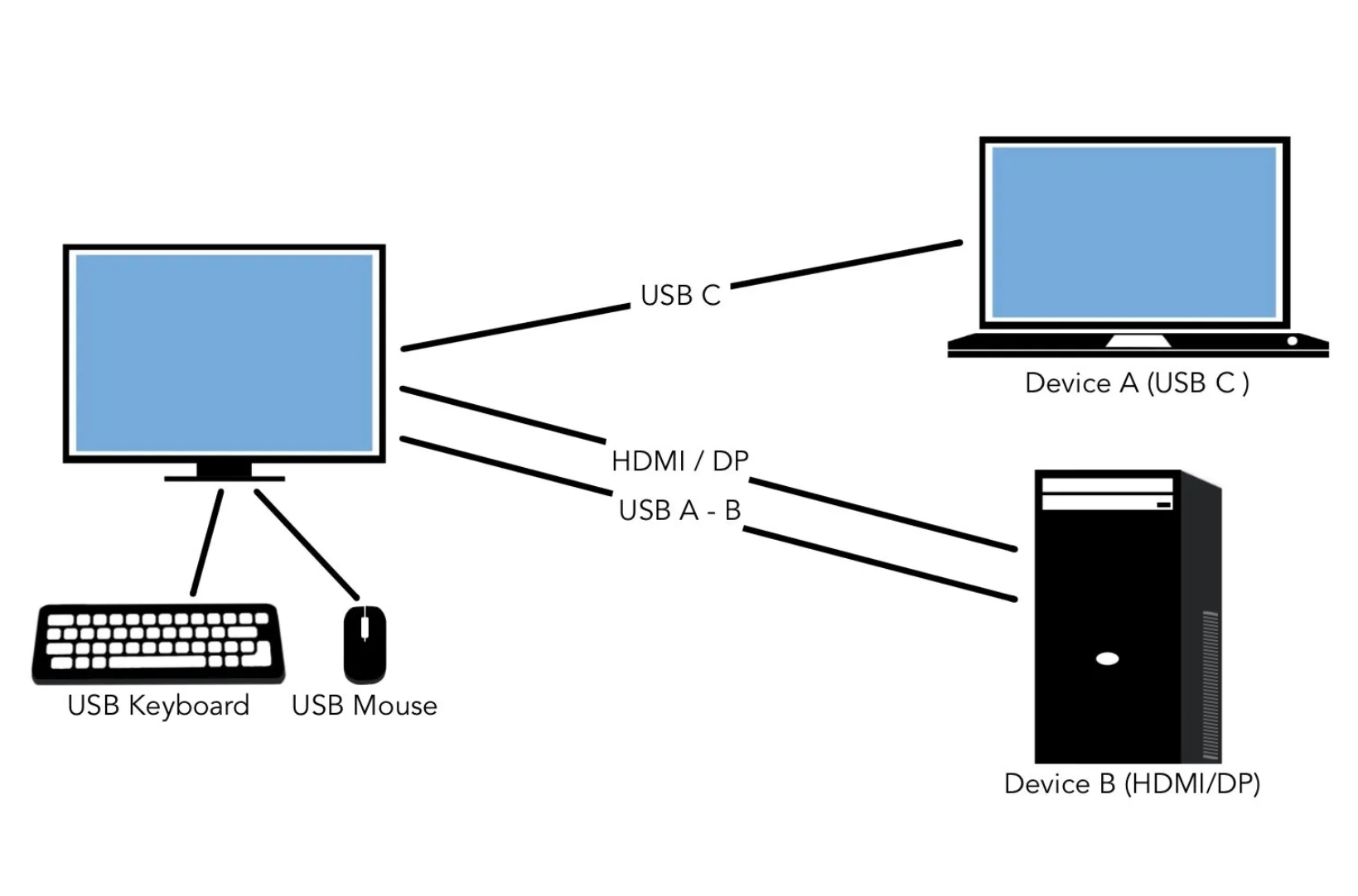
Scenario 1 (With a PC which comes with USB-C Display Out)
In this setup, you need fewer cables because the USB-C connection can transmit both data and video signals simultaneously.
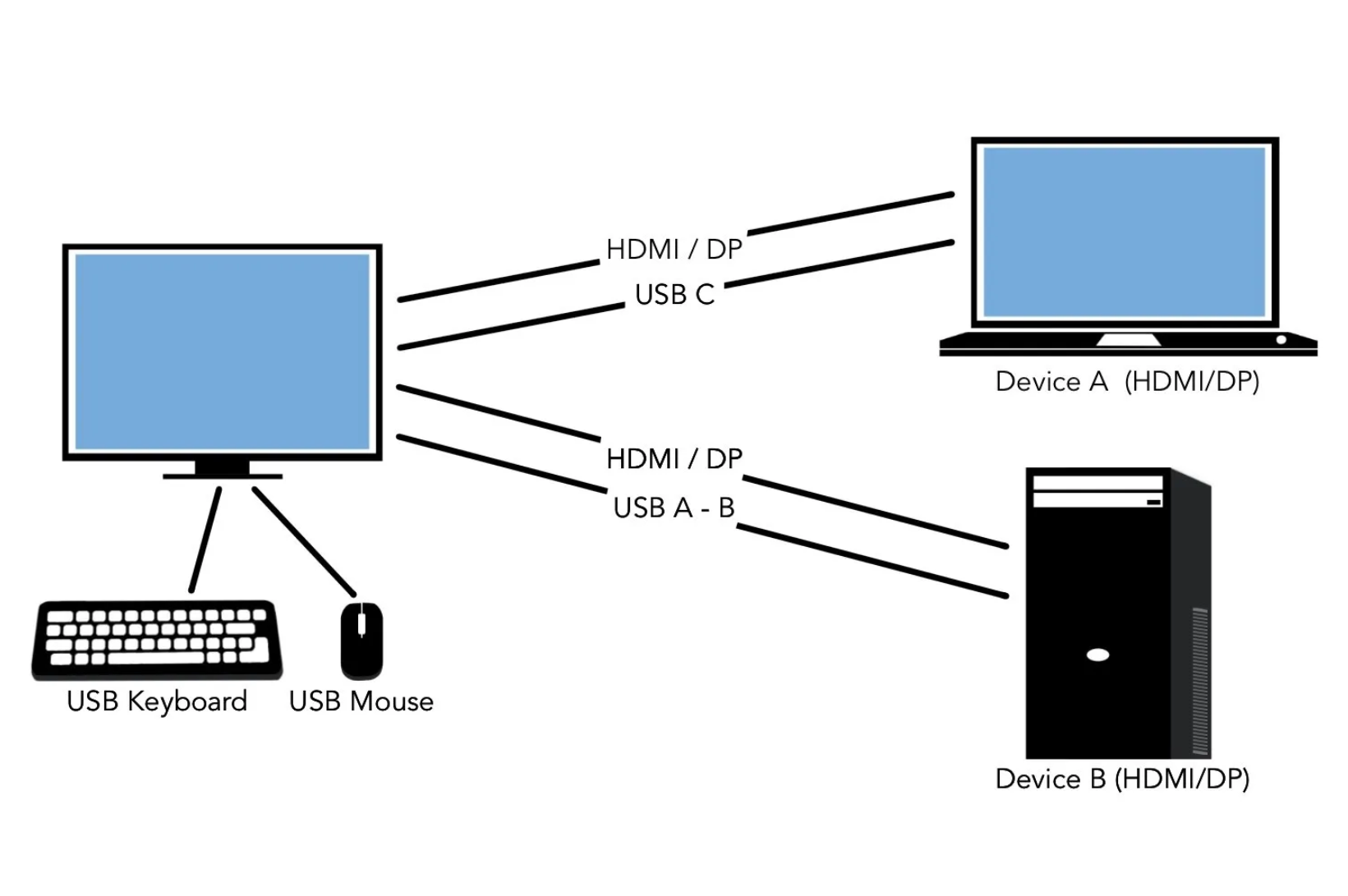
Scenario 2 (With a PC without USB-C Display Out)
In this setup, you will need a total of four cables between your monitor and devices to make the KVM function work.
How do you toggle between devices?
Once all connections are set up, you can toggle between devices using the On-Screen Menu:
(If you don't know how to open to the monitor's On-Screen Menu, please refer to the manual. Different model have different ways to open the On-Screen Menu.)
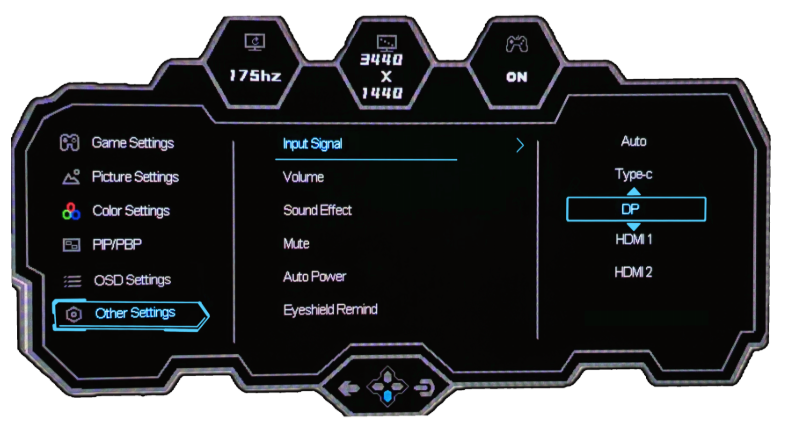
- Other Settings → USB Switch → TYPE C/DP/HDMI
To confirm your selection, toggle right on the connected device you want to control.
What to do when your mouse and keyboard are not on the intended device?
This can be easily adjusted on the on-screen menu to correct the connection.
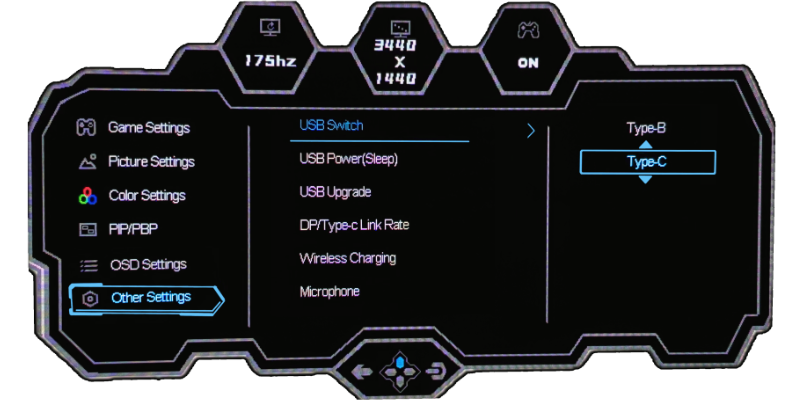
- Other Settings → USB Switch → TYPE-B/TYPE-C
To confirm your selection, toggle right on the connected device you want to pair with.
This setting ensures synchronization between the USB type connected and the monitor’s input signal for display.
Was this faq helpful?
Your feedback helps us improve every faq.Didn't find your answer?
No problem — send us the details below and a specialist will reply by email. Avg. response under 4 hours during business hours.